MarginNote 4.3.1 Release Notes
This update delivers comprehensive upgrades to Backup & Version History, Cloud Drive Import, Mind Map Editing Shortcuts, and Handwriting Experience, along with numerous bug fixes for a more secure, smoother, and more stable learning experience.
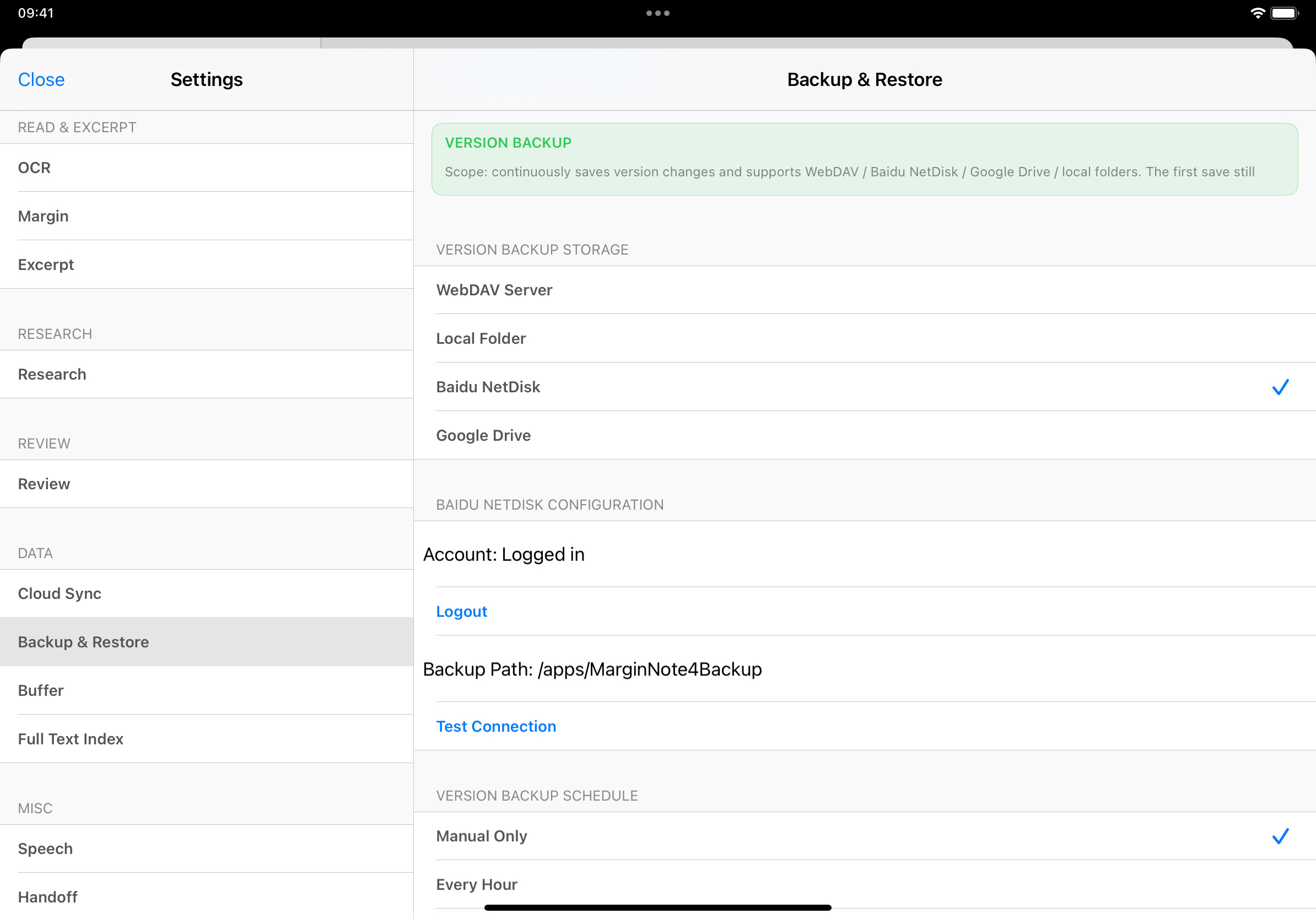
 Multi-Channel Version Backup Mechanism
-
New Version Backup Mechanism: Only saves incremental data changes, allowing you to trace back version history while saving storage space and enabling faster recovery.
-
Supports Multi-Channel Automatic Backup: WebDAV / Google Drive / Local Folder / Baidu NetDisk, ensuring your data is securely stored remotely.
-
6 Automatic Backup Frequencies: Manual, Every Hour, Every 6 Hours, Every 12 Hours, Daily, Weekly.
-
Backup Runs Silently in the Background: Your learning workflow remains uninterrupted.
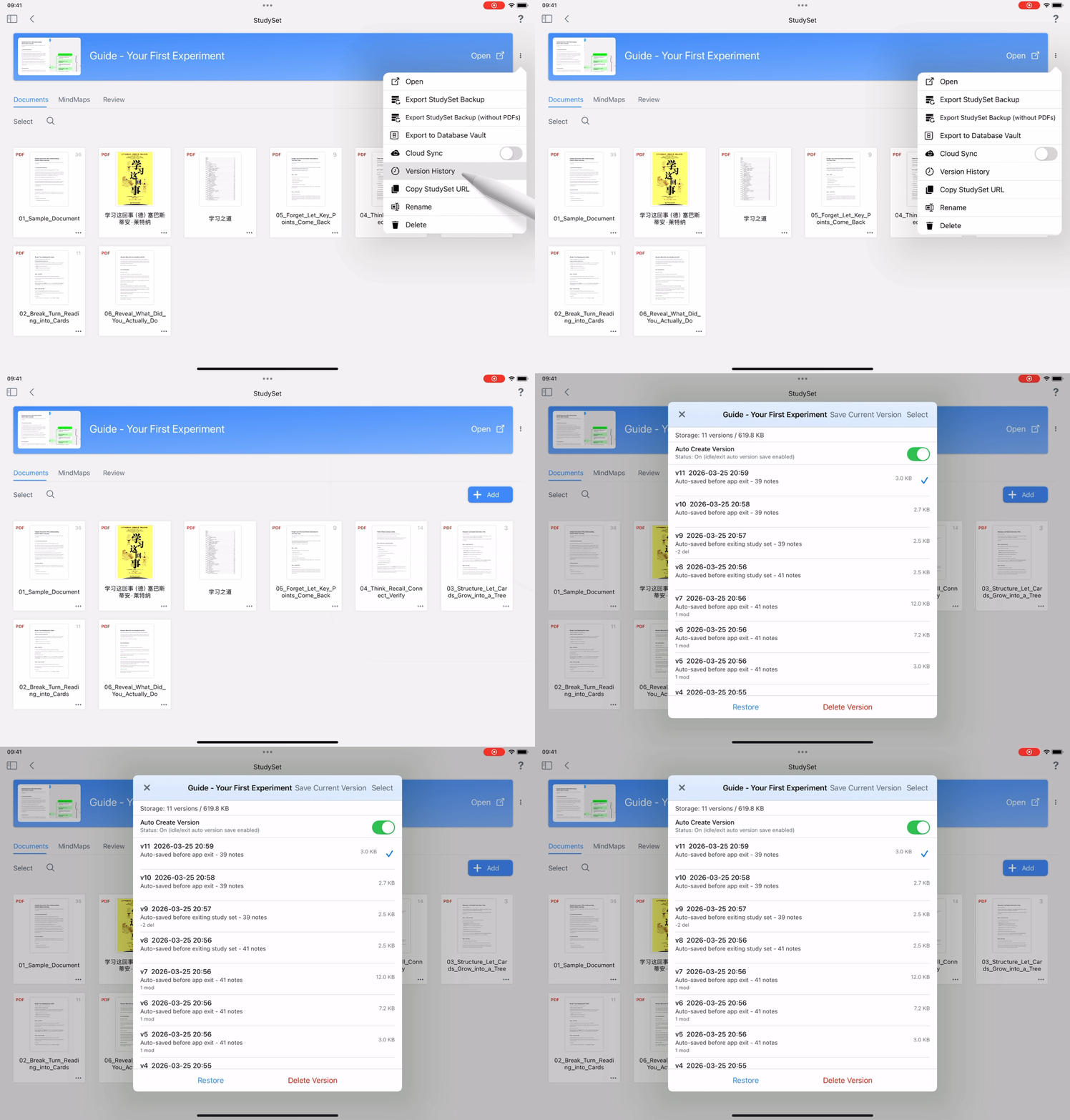
 New Version Library Management
-
View historical snapshots and roll back to previous versions, making it easy to recover from accidental content loss or data corruption.
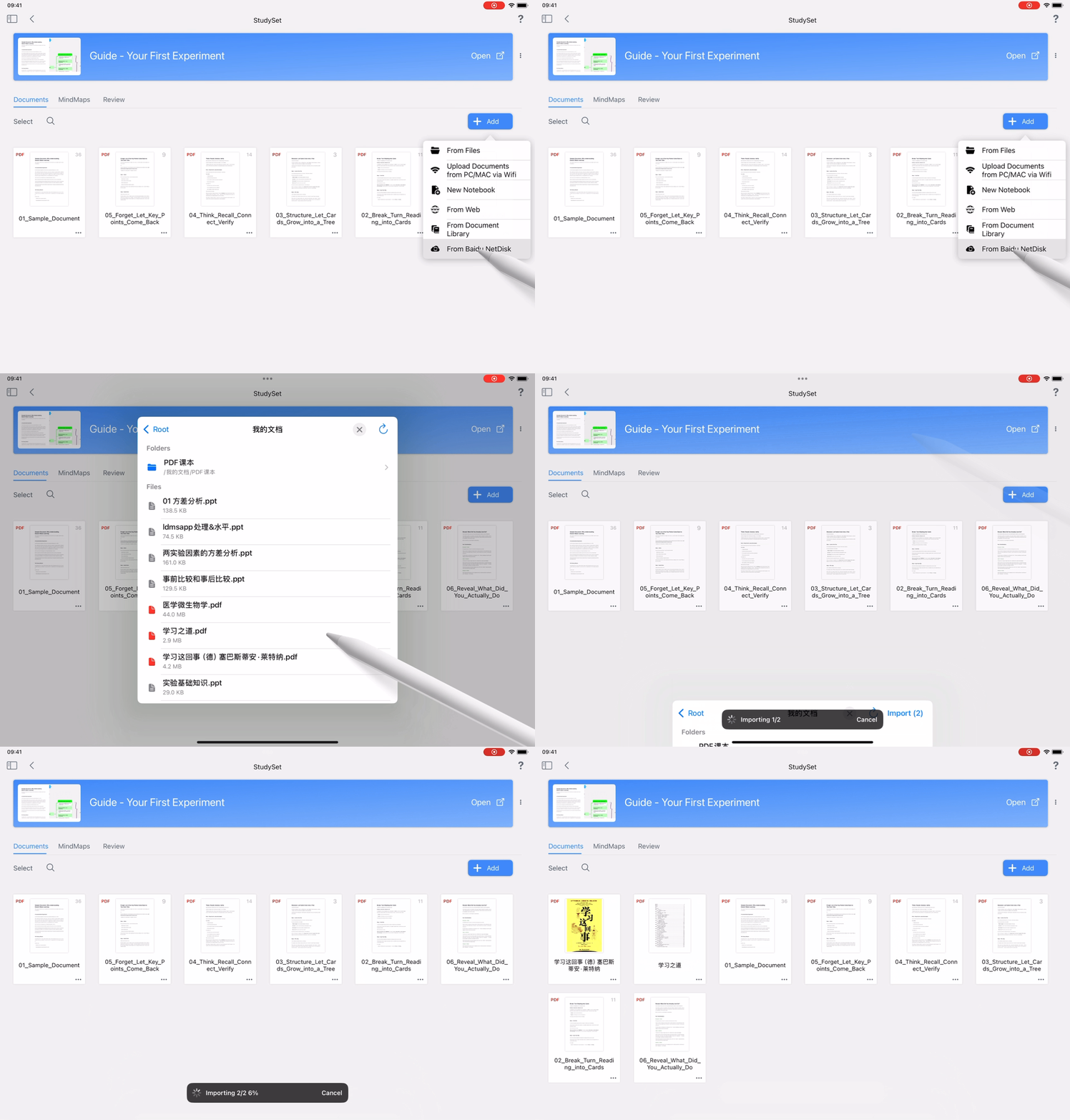
 Optimized Document Import
-
New Baidu NetDisk Entry: Supports batch importing documents directly from Baidu NetDisk into study sets.
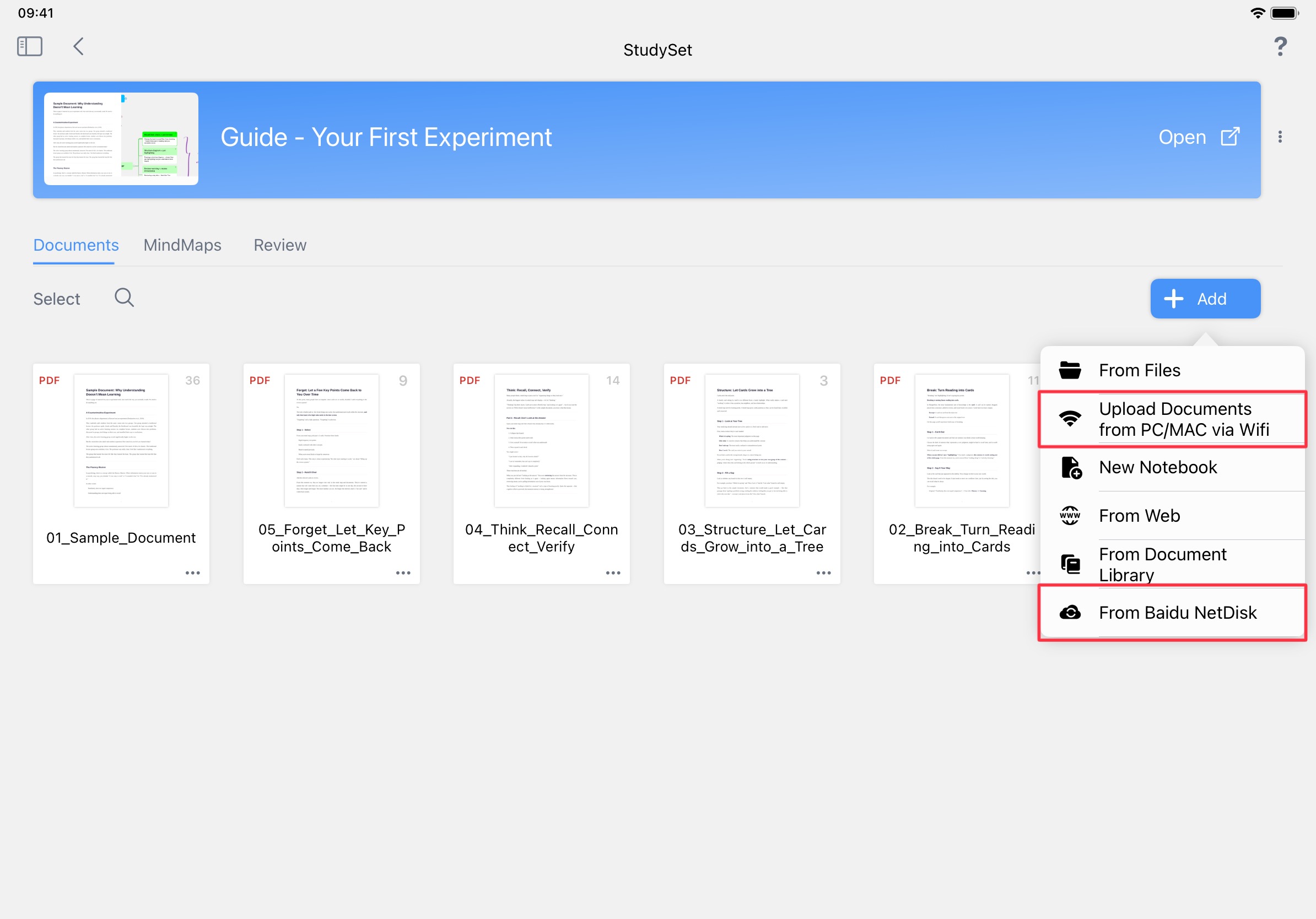
-
Refactored Import Menu: Clearer structure for faster and more efficient navigation.
 Handwriting Experience Upgrade
-
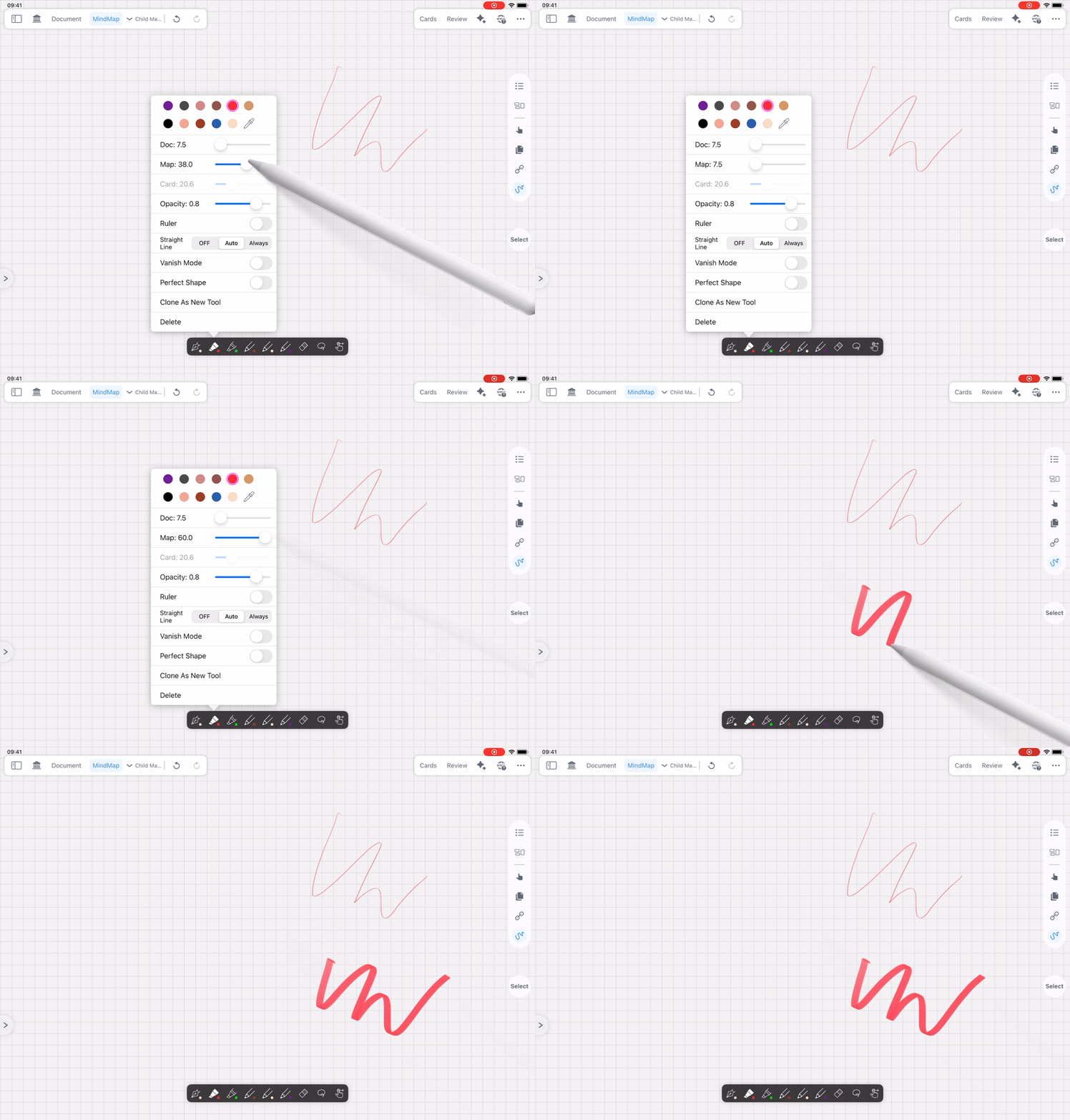
Continuous Slider for Stroke Width Adjustment: Offers stepless, smoother adjustment with significantly improved precision.
 Mind Map Editing Efficiency Upgrade
-
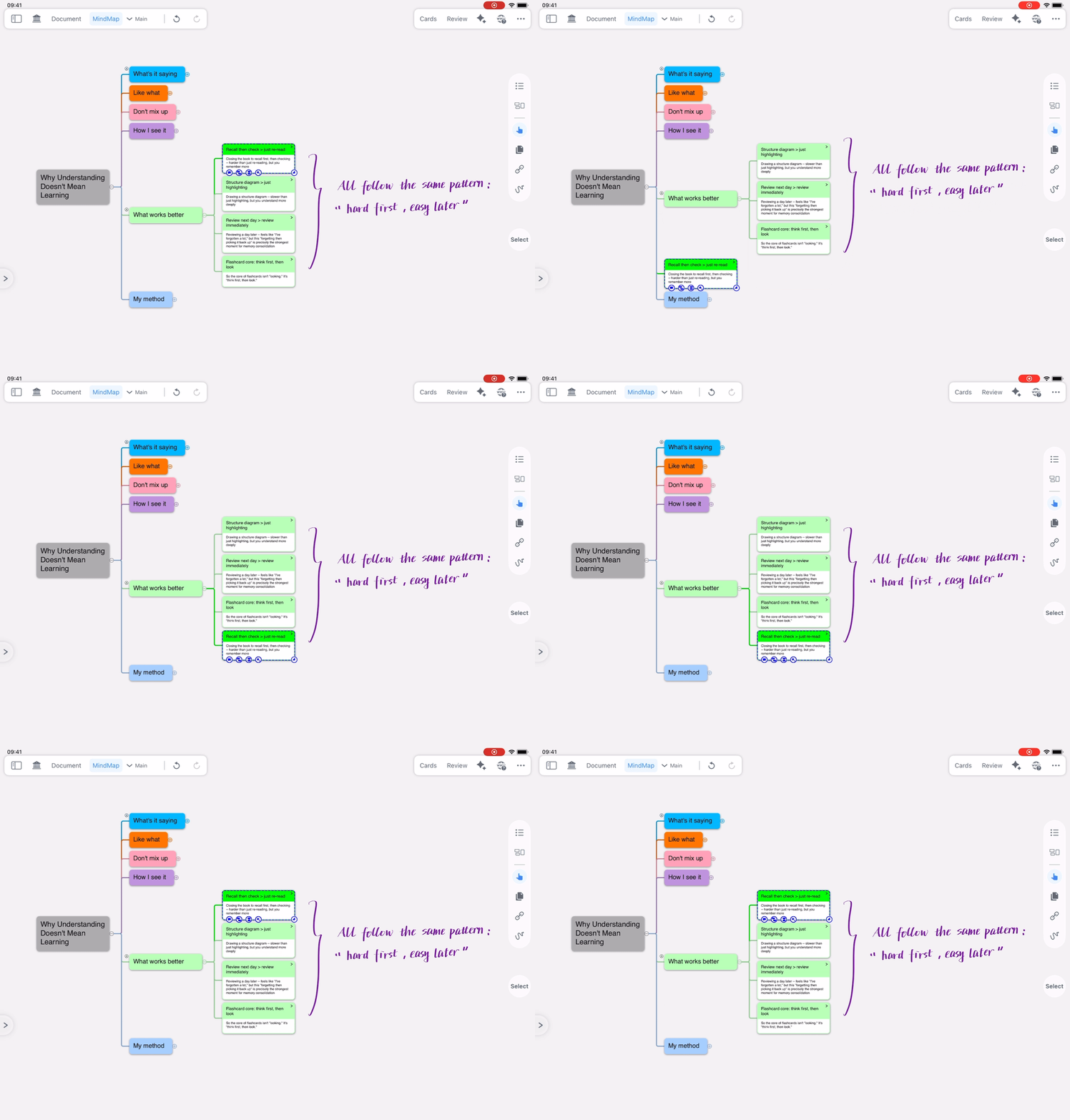
New Mind Map Shortcuts: Indent node, Move Up/Down, Delete entire card tree, and quickly create node links.
-
Optimized Selection & View Restoration After Focus Switching: Ensures a more seamless editing flow.
 New User Onboarding
-
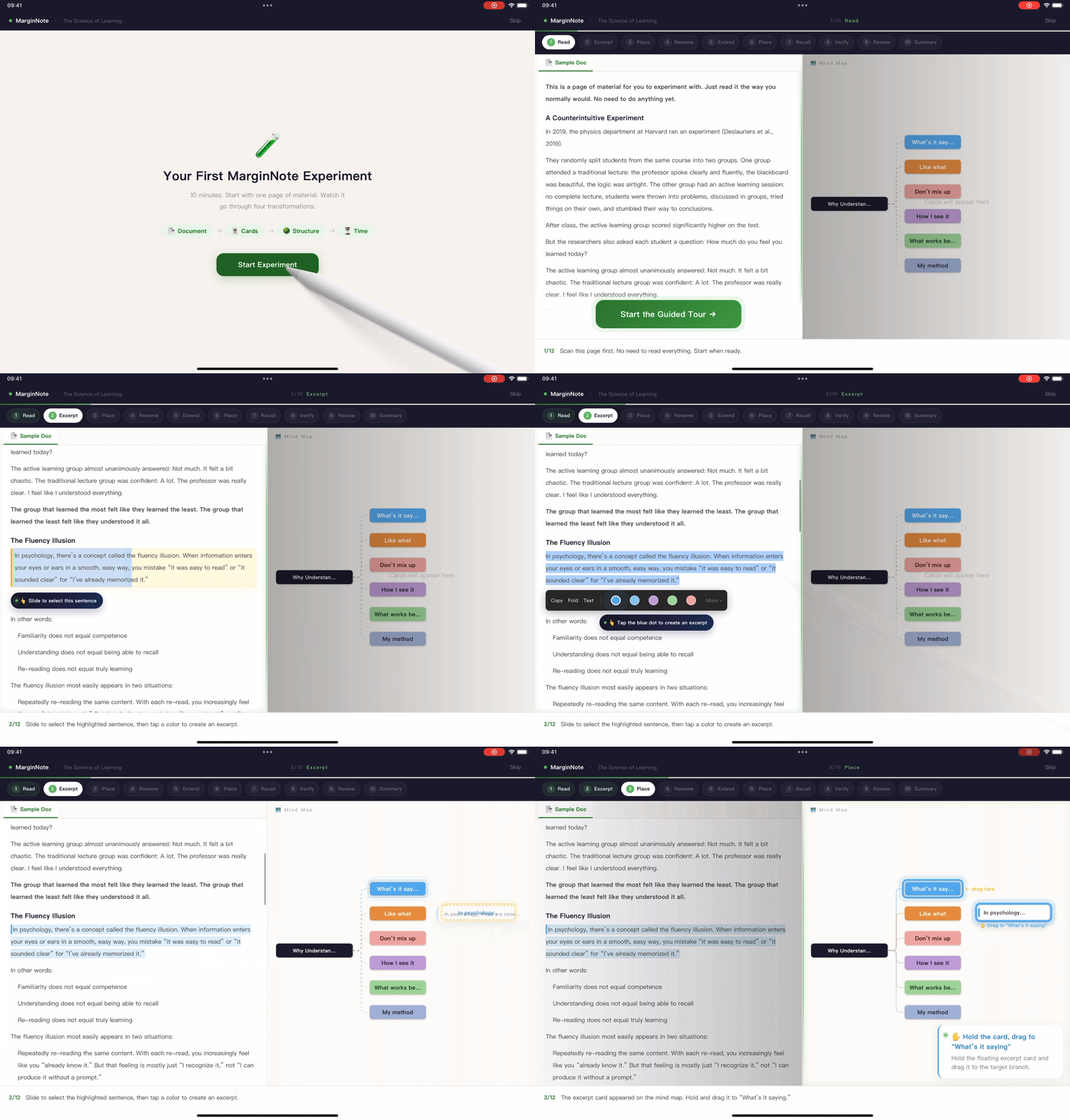
Interactive Short Tutorial on First Launch: Get familiar with core features in just a few minutes.
-
Updated Example Study Sets: Provides more sample content that better reflects real-world usage scenarios.
 Ongoing Stability Optimizations
✓ Optimized pop-up blocking and interface scaling issues in Bilibili scenarios.
✓ Fixed an issue where Hand Tool menu colors did not sync after importing study set-specific styles.
✓ Continuous improvements to overall experience and stability.
 Detailed Feature Guide: In-app
 ? → User Manual
 Search for MarginNote4 and tap
 Update to unlock a more secure and efficient learning experience!
 We welcome your feedback. Your experience drives our continuous iteration!
 Frequently Asked Questions (MarginNote 4.3.1)
1. What is a Full Backup, and how is it different from a Version Backup?
These are two ways to “archive” your MN data:
| Full Backup | Version Backup | |
|---|---|---|
| One-line Summary | Takes a “family photo” snapshot of all data | Saves the “version history” of all data |
| Best For | Sharing data with others, packaging data for archival storage | Long-term enabling for maximum data security |
| Pros | Simplest and fastest recovery | Only records changes (incremental backup), saves space, allows tracing data changes |
| Cons | Takes up more storage space | Recovery usually involves “chaining versions,” more complex management |
Summary:
- Full Backup: Backs up the “full amount” every time.
- Version Backup: Backs up the “history of changes,” emphasizing traceability and space savings.
For important note data, it is generally recommended to use the “Full Backup + Version Backup” combination for both easy recovery and protection against accidental deletions or modifications.
2. What is the difference between Version Backup and Version Library?
| Version Backup | Version Library | |
|---|---|---|
| One-line Summary | Stored remotely – a “safety deposit box” for your data elsewhere | Stored locally – part of the MN note database |
| Main Purpose | Device-level disasters (lost/stolen device, damage, accidental wipe) | Fixing mistakes, rolling back changes, viewing history |
| Pros | Recoverable across devices, strong disaster resistance, provides a safety net | Fast, readily available, works offline; convenient for daily rollbacks |
| Cons | Takes up space, slower upload/download, requires network | Version library is lost if the app is deleted or the device is damaged |
A Simple Analogy:
- Version Library = The “history drawer” on your phone.
- Version Backup = Storing important items in a “safety deposit box elsewhere.”
- “Why have Version Library if I already have Version Backup?”
Because the Version Library is mostly on your device – if something happens to your device, it may be lost as well. Version Library ensures you can “roll back mistakes,” while Version Backup ensures you can “recover if your device is compromised.”- “Why have Version Backup if I already have Version Library?”
Because daily editing requires high-frequency, low-latency rollbacks. Relying solely on cloud backups each time would be slow and cumbersome. Version Backup serves as a safety net, while Version Library improves day-to-day efficiency.
3. If I import a file from Baidu NetDisk into MN and then delete the source file in Baidu NetDisk, will the file in MN be automatically deleted?
No. Once a file from a cloud drive is imported into MN, a separate copy is stored in the MN folder. It is not linked to the source file on the cloud drive.
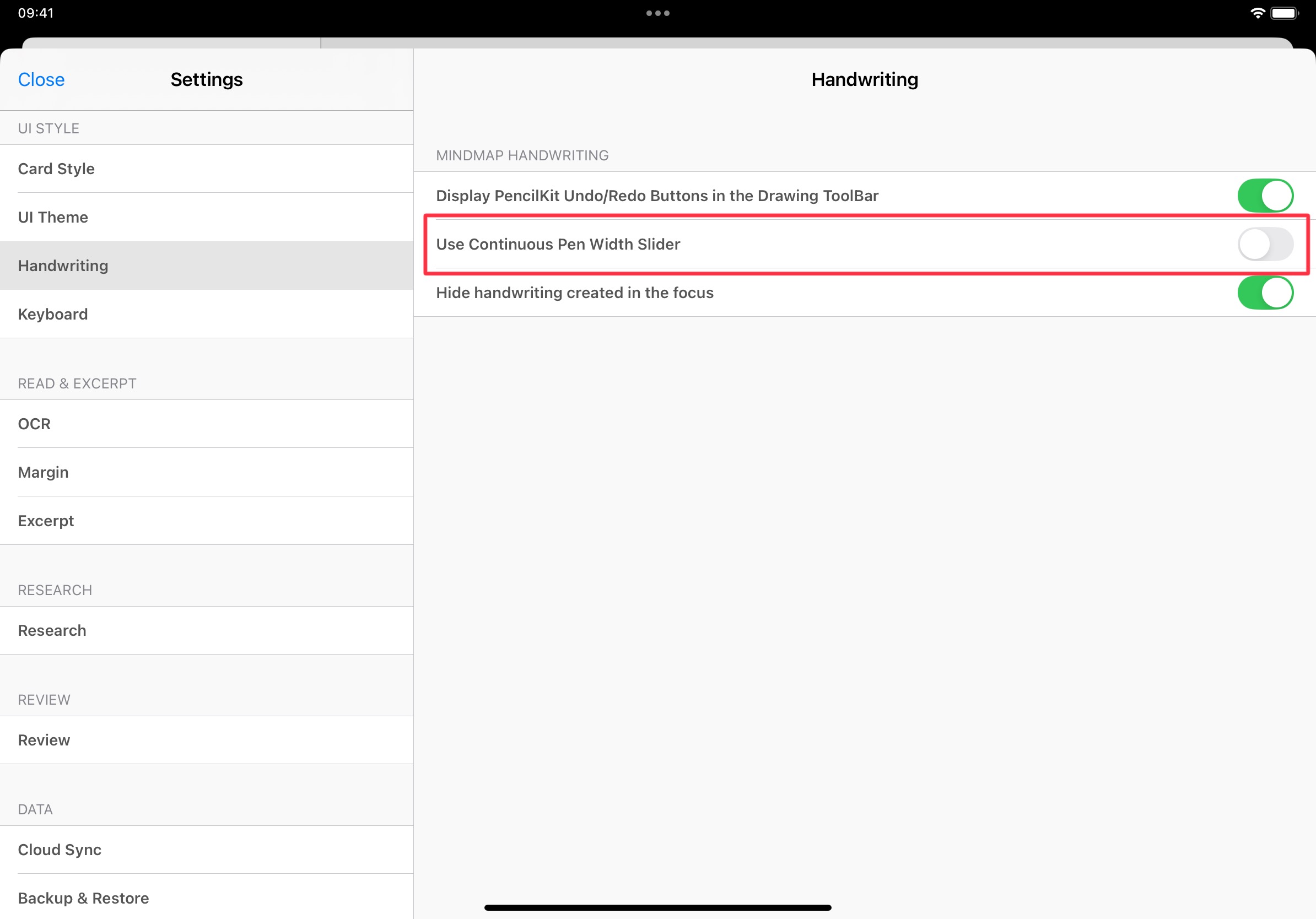
4. How do I switch back to the legacy stroke width adjustment?
Go to Settings → Handwriting → turn off Use Continuous Stroke Width Slider.
5. How do I enable the legacy Trash feature?
Go to Settings → Backup & Restore → turn on Trash (Legacy).
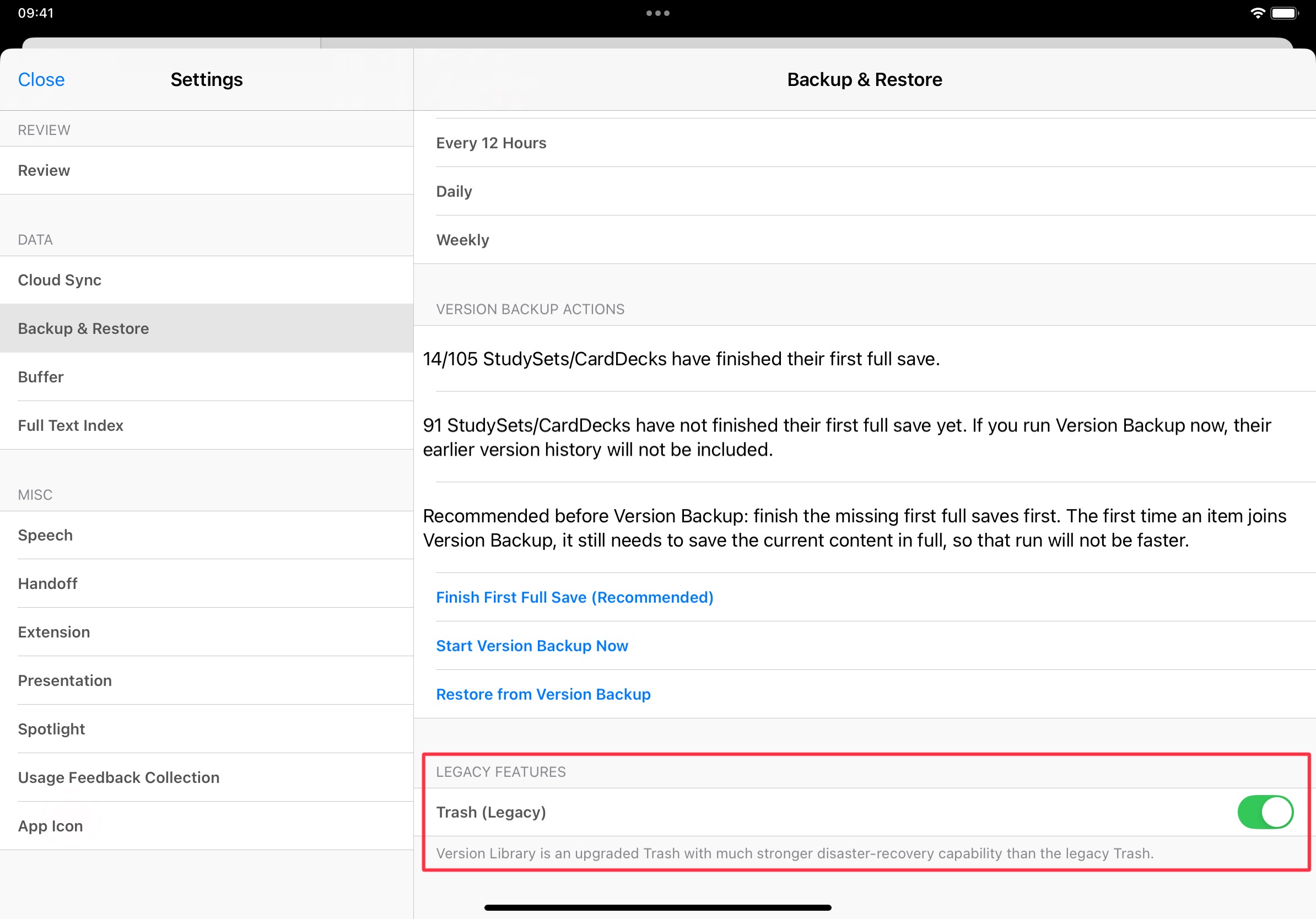
Note: The Version Library is a comprehensive upgrade over the legacy Trash. It is not recommended to enable the legacy Trash unless absolutely necessary.