Adding a card label
When in the card edit box
→ Click on the “ ” icon below
→ You can select tags (multiple choices) or add new tags

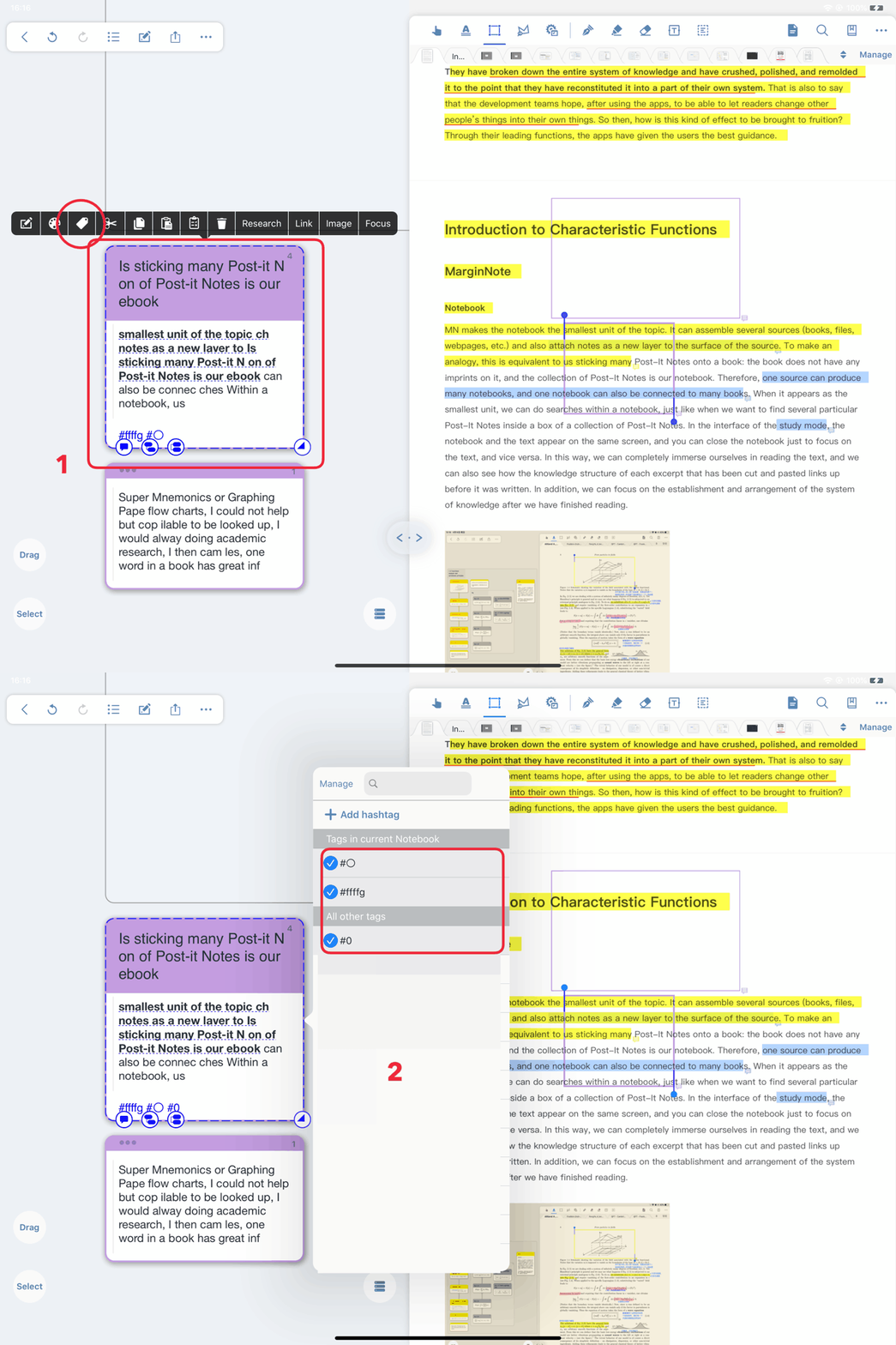
When in the learning module
→ Click on a card in the brain map or outline screen
Make sure your outline has edit mode turned on in the bottom right corner
→ Select the “” icon in the pop-up toolbar
→ You can select tags (multiple choices) or add new tags
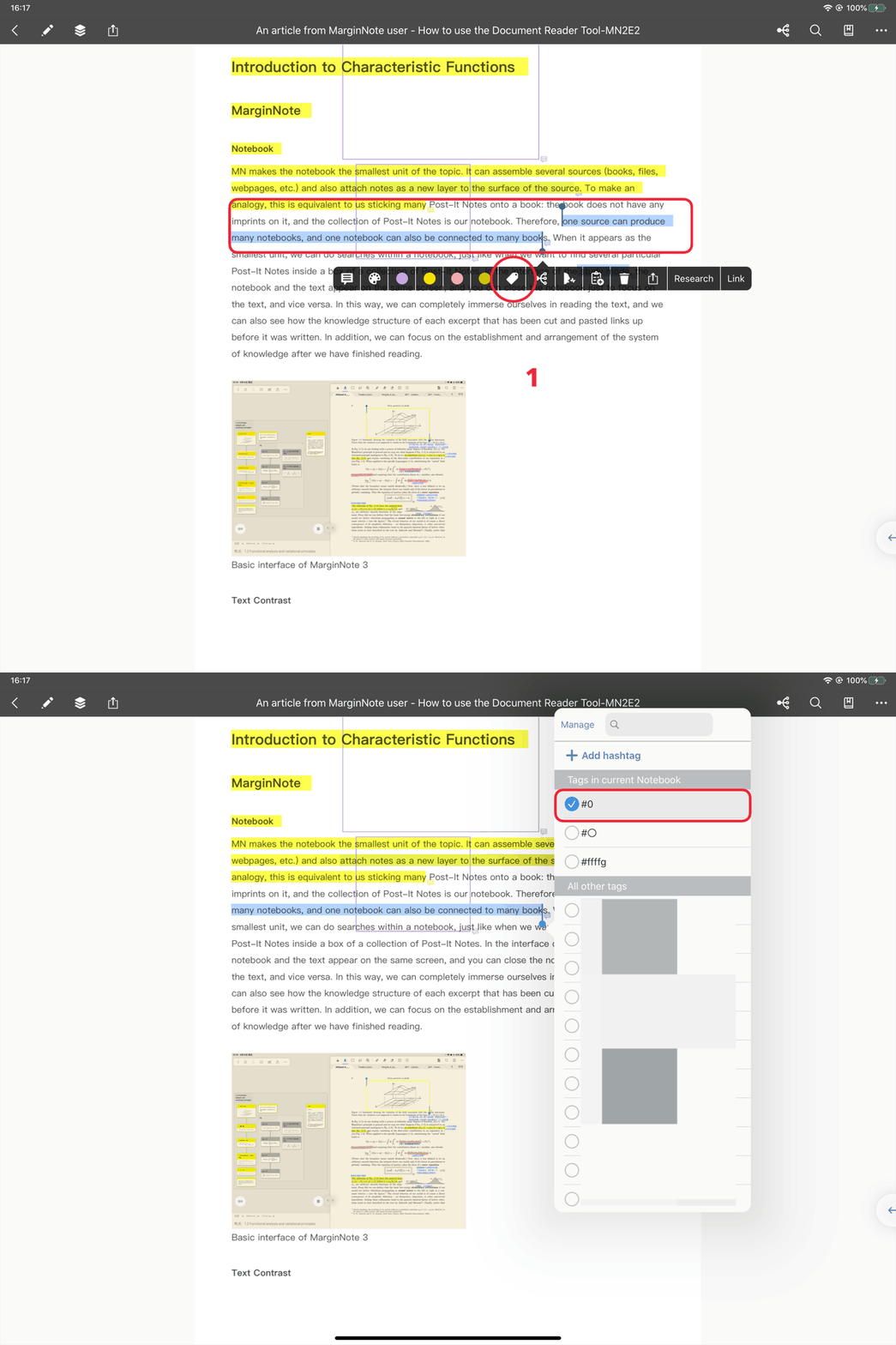
Under the document module
→ Click on a note in the document
→ Select the “” icon in the pop-up toolbar
→ You can select tags (multiple choices) or add new tags
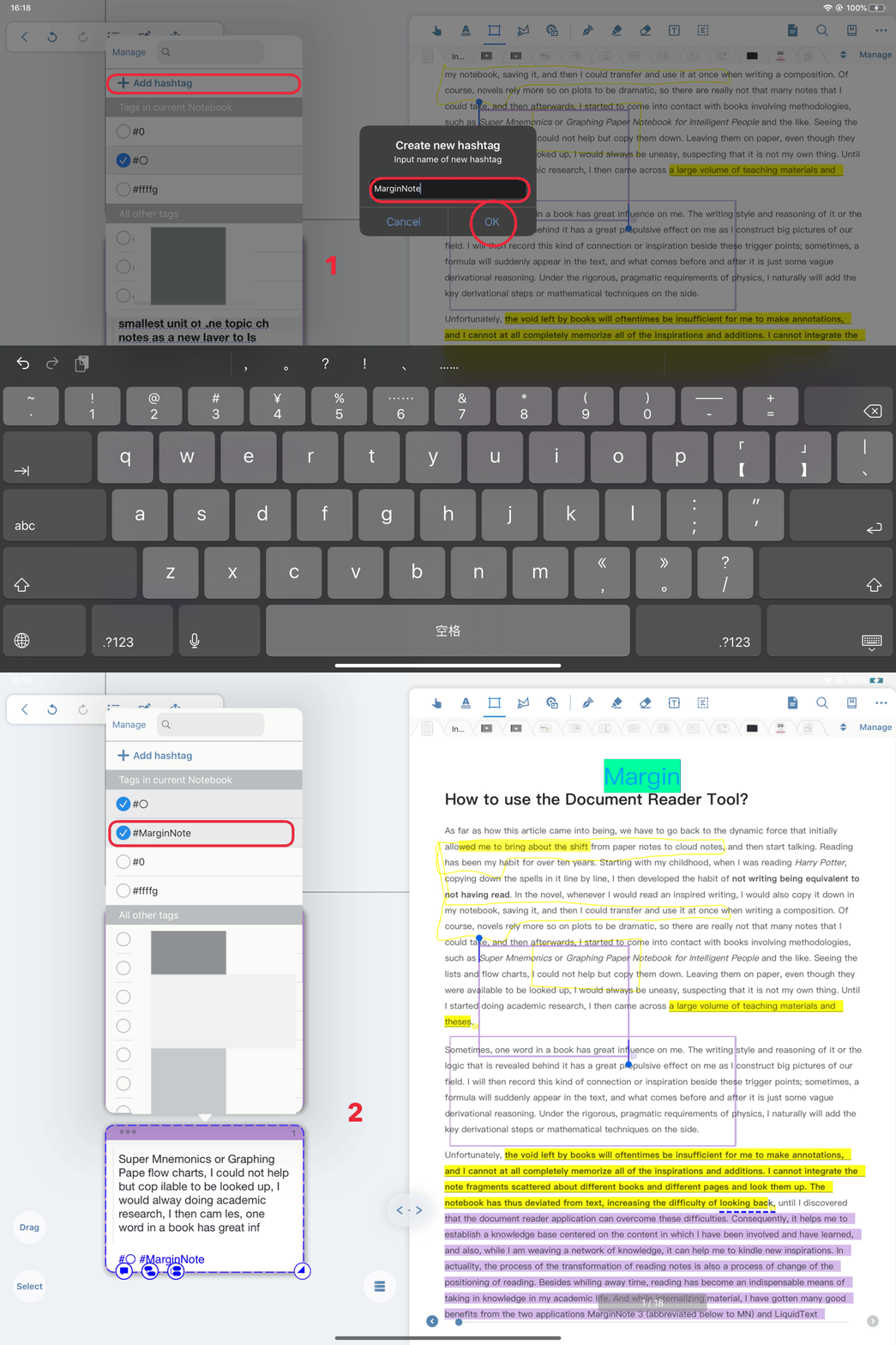
Create new label
Click " Add hashtag " at the top of the tag interface
→ enter name
→ create new label